LinkedIn Connection Request Notes That Fit 200 Characters
LinkedIn caps connection request notes at 200 characters. See what counts, plus 5 recruiter templates that fit under the limit.


A LinkedIn connection request note is capped at 200 characters on every account, so every word has to earn its place. This guide breaks down what counts toward the limit, when to skip the note, and gives you five recruiter templates.
👉 Want to organize your connection requests in one workflow, with every request still sent by you? Read our guide on how to manage LinkedIn connection requests as a recruiter.
What is a connection request on LinkedIn?
A connection request is how you add people to your network on LinkedIn. You can send one to people you already know or to candidates you want to engage and connect with. LinkedIn also lets you attach a short note of up to 200 characters.
The 200-character limit on LinkedIn invitation notes
When you add a note to a connection request, LinkedIn gives you a small box with a hard cap of 200 characters on every account. LinkedIn’s current invitation-personalization guidance, checked August 11, 2026, says Basic accounts can add a note to three requests per month. Premium members can personalize every invitation, although separate connection-request limits still apply.
Everything in the box counts toward the limit: letters, spaces, line breaks, punctuation, and emojis. A single emoji can eat several characters, and line breaks count too, so a note that looks short can still trip the cap. LinkedIn simply will not let you send a note that runs over, so it is safest to draft the message where you can see the count and trim it before you paste it in.
One more thing worth knowing: filling the entire limit is rarely the goal. A practical target is roughly 120 to 180 characters. That range leaves room to say who you are, why you are reaching out, and why the candidate may want to connect.
LinkedIn connection request notes vs InMail messages
Connection requests and InMail serve different purposes. A candidate has to opt in by accepting your request, and once they do, your future messages land in a normal conversation. InMail lets you contact someone before they join your network, but each message uses a credit.
A candidate accepting a connection request does not guarantee they will reply. However, they are now in your network, and you can reach out straight to their LinkedIn inbox.
By clicking on Contact Info on his profile, you may also find his personal email address and his phone number, which is another advantage of the connection request.
Last but not least, InMail is a limited resource. You only get a set number of InMail credits, and how many depends on your plan (LinkedIn Recruiter Lite or LinkedIn Recruiter Pro). Once you run out, you have to wait for your monthly credits to refresh or pay to upgrade. Leaning on connection requests helps you stretch those credits and keep your outbound recruitment costs down.
👉Check out our blog post: LinkedIn InMails vs. Connection Requests.
How many LinkedIn connection requests can I send each week?
LinkedIn does not publish one universal weekly quota. If you send too many requests quickly, or too many remain pending, are ignored, or are reported, you can hit an invitation restriction and get temporarily paused. Send requests to candidates you have actually reviewed, and respect any pause LinkedIn applies to your account.
How to send connection requests on LinkedIn with a note or a message
The standard way to send a connection request is to go to the candidate’s LinkedIn profile and click “Connect”.
If the button is not displayed, you will have to click on the “More” button, and then “Connect”
After this step, you can add a note to your connection request. The maximum is 200 characters on every account.
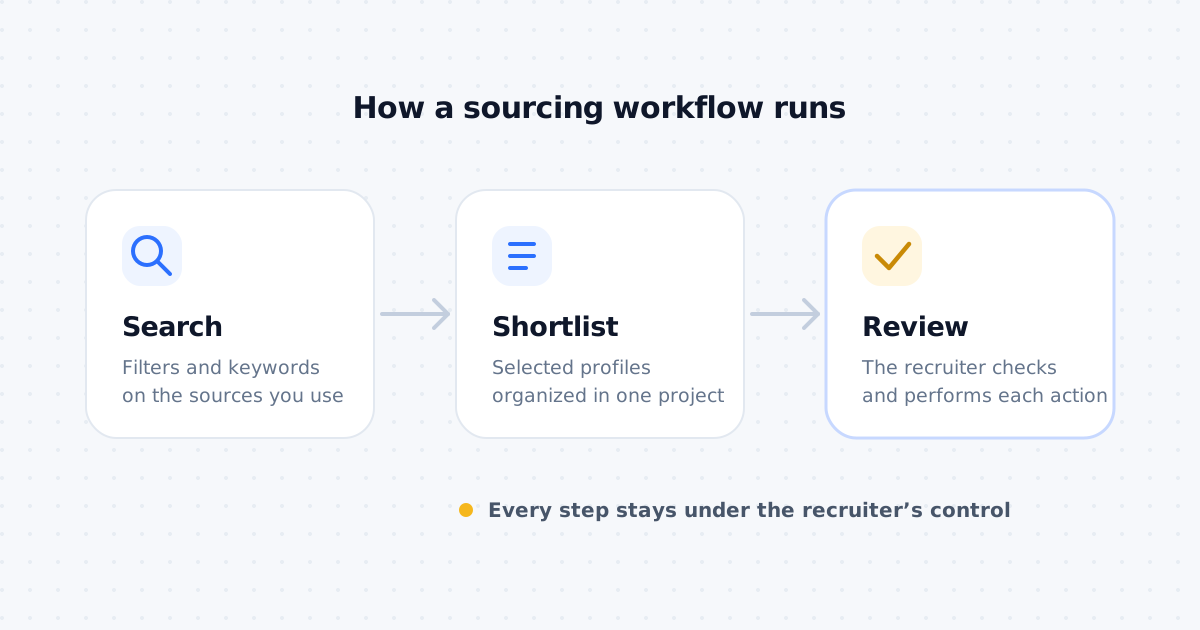
Whether you add a note or not, the request leaves from your own account, one candidate at a time.
Can I send connection requests to several candidates at once?
LinkedIn’s own composer takes one connection request at a time, and that is how it stays. There is no bulk send, and no tool should send requests from your account for you.
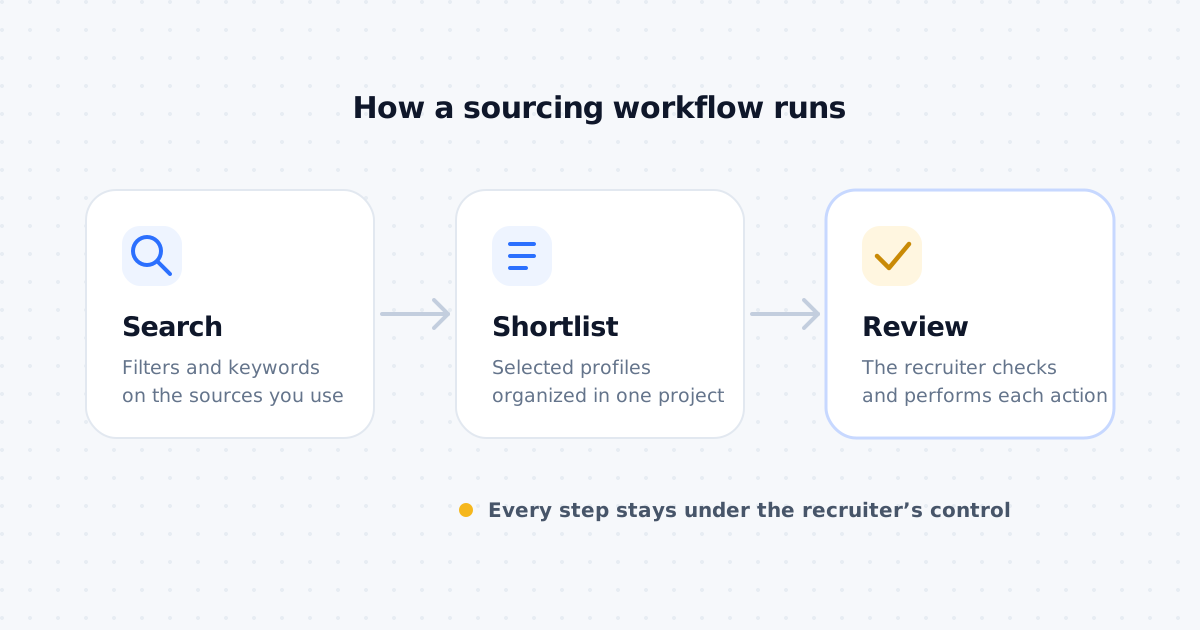
What you can organize is everything around the click. In Leonar, you keep the list of candidates you want to invite, draft a note for each one, and put the request in a sequence as a LinkedIn task. On the day it is due, the task shows the candidate and the drafted note. You open the profile on LinkedIn, send the request yourself, and mark the task as done. LinkedIn steps are tasks you complete yourself on LinkedIn. The email steps of the same sequence, such as a follow-up three days later, run on their own and stop when the candidate replies.
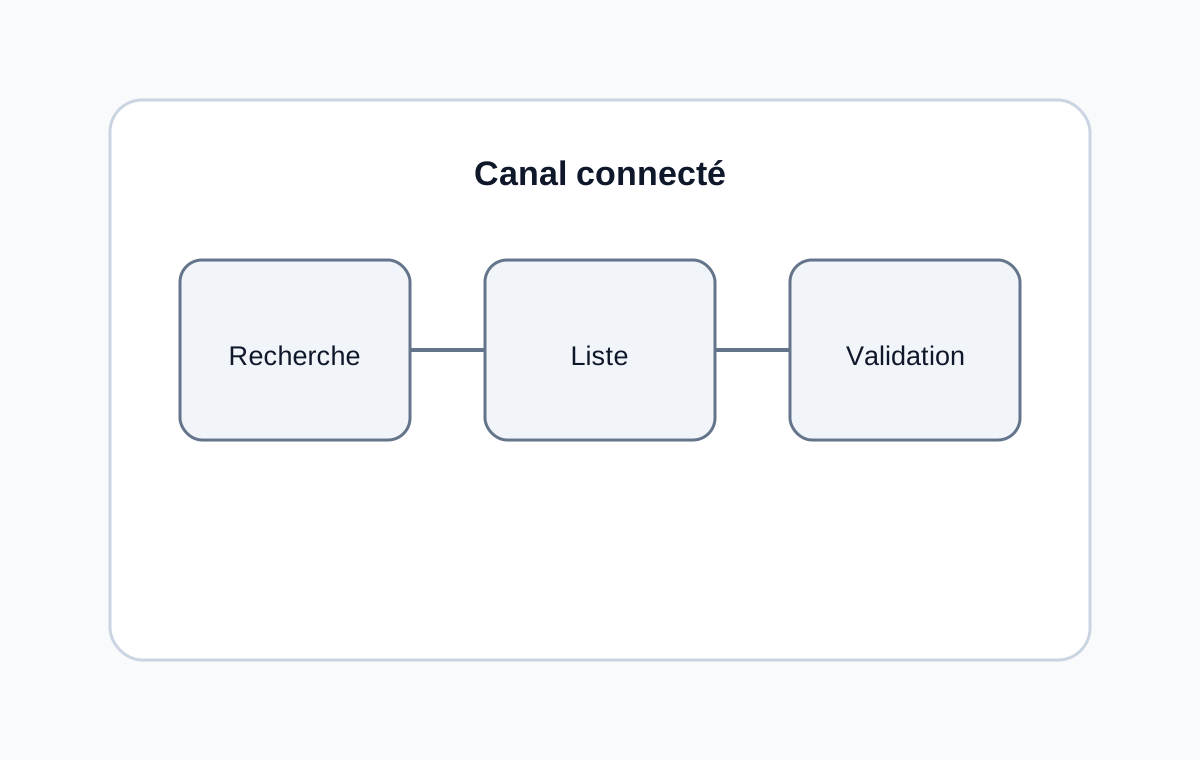
For a deeper dive, read our guide to multichannel sequences with LinkedIn tasks.
Mistakes to avoid in your LinkedIn connection request notes
Before sharing the perfect connection request messages used by the most talented recruiters and talent acquisition managers, here is a quick list of the common mistakes you need to avoid while sending sourcing messages:
- Get the first name wrong on the candidate => “Hello John” / “I’m Mary” / “Oh sorry…”.
- Leaving tags in the note: “Hello [First name]”;
- Share a job offer that has nothing to do with the candidate in question
- Offering a scope of responsibility that is far less than the candidate’s current position
- Lack of transparency: “My client is a tech company looking for a candidate for a position with a high level of responsibility. Compensation to be discussed”.
- Not knowing the ins and outs of a position at all. Example: Contacting a strategy consultant instead of an IT consultant, contacting a Backend instead of a Frontend developer, …
Of course, out of the panel of candidates you will contact, there will sometimes be some who do not fall into one of the cases mentioned above.
The idea is to minimize the risks to maximize the response rate.
A higher response rate means:
➜ Less time spent on sourcing
➜ A higher probability of finding the right candidate
➜ A reduced time-to-hire
5 LinkedIn connection request note templates under 200 characters
Below are five written connection request notes, plus a no-note option as a bonus. Each written template fits the 200-character limit. Every card shows the exact character count so you can adapt it safely.
Note 1: give as much detail about the job as possible
Sarah Recruiter · Talent Acquisition Partner
Hello [first_name], I’m hiring a CFO for [company], a FoodTech scaling toward profitability. Team: two managers. Paris. Salary: around 150k. Are you open to hearing more?
170 / 200 characters
This type of note gives candidates the maximum information up front.
Pros:
- Saves time for both sides, since the role, location, and salary are already on the table
- Gives the candidate useful context about the job and the pay
Cons:
- A candidate who is not interested may be less likely to accept or reply
- It fills more of the limit, so there is little room left for personalization
Note 2: act as a talent agent
Sarah Recruiter · Talent Acquisition Partner
Hello [first_name], your profile is in high demand right now. I’d like to add you to my network to share roles in [industry]. I have one at [company] that could be a strong fit. Talk soon.
188 / 200 characters
This approach works well for recruiters, and especially for headhunters building a long-term network.
Pros:
- Great way to expand your network for future roles
Cons:
- Some candidates would have preferred more detail about the job
Bonus option: skip the note entirely
Sarah Recruiter · Talent Acquisition Partner
(no note added)
0 / 200 characters
It may not be obvious, but some candidates prefer a request with no note at all.
Pros:
- Requires no drafting or personalization time
- Good option when your goal is simply to grow your network
Cons:
- You may need to follow up with an InMail or email as a second step, for candidates who do not accept note-free requests from recruiters
Note 3: a lightly personalized template
Based on a candidate’s background or interests, you can tailor a short message to the person you are targeting.
Sarah Recruiter · Talent Acquisition Partner
Hello [first_name], I have a role at [company] that might interest you. Your experience at [former_company] is exactly what the team is looking for. Would you like to connect?
175 / 200 characters
Pros:
- Shows more interest in the candidate’s specific experience
Cons:
- Can be time-consuming to do by hand
- Some candidates recognize lightly templated notes for what they are
Note 4: a deeply personalized note
Another option is to find something specific in the candidate’s background, interests, or recent activity, and build the note around it.
Sarah Recruiter · Talent Acquisition Partner
Hello [first_name], I saw your interest in sustainability. We’re building an app that measures environmental impact, and the role we’re hiring for could be a great match. Open to a quick chat?
192 / 200 characters
Pros:
- Shows the candidate why their specific background caught your attention
Cons:
- The most time-consuming to write for recruiters at scale
Note 5: mention a referral or shared connection
Use this version when a colleague, hiring manager, or mutual contact gave you a relevant reason to reach out.
Sarah Recruiter · Talent Acquisition Partner
Hello [first_name], [mutual_contact] suggested I reach out. I’m hiring a [role] at [company], and your work on [project] stood out. Would you be open to connecting?
164 / 200 characters
Pros:
- Adds clear context for the request
- Fits both paid and free account limits
Cons:
- Only use a person’s name when they genuinely suggested the introduction
Is it possible to generate notes using AI?
AI can help you write your notes without leaving the tool you already source in. Leonar generates connection request notes with AI right inside the app, so you can draft a note, keep it within your account’s limit, and move on.
You can also ask the AI to adapt the note to each candidate’s background. In a sequence, Leonar’s AI variables draft a personalized line for every recipient (a Professional plan feature). For email steps, the line is inserted when the email goes out. For a LinkedIn task, it is part of the draft you review before you paste it into LinkedIn.
Is it possible to cancel a connection request?
LinkedIn lets you withdraw a pending connection request yourself, in two places.
If you are on the candidate’s profile, you can click on the “pending” button to withdraw the invitation. You have to know that you won’t be able to resend any connection request to this person for up to 3 weeks.
Another option you have is to go to “Your network”. On this view, you will be able to manage all your pending requests and select which one you want to withdraw.
What should you do after the candidate has accepted the connection request?
After a short note that fits your account’s limit, the next message can give more information about the job.
The details you can give are:
- What are the missions
- The salary and the benefits
- Maybe send a link to the job description
The most important is to set up a call.
Do not hesitate to follow up with the candidate after a few days if he does not answer your messages.
What if the candidate does not accept the connection request?
If the candidate does not accept the connection request, do not worry, it is not over yet. You have at least three other options:
- Send them a LinkedIn InMail. You will be able to provide more information about the job. He will also be notified by email that he has received the message
- Send him an email to his personal address. Using some tools, you may be able to find his personal email address and send him a message with more information about the job. If you work at a staffing firm, see our templates for introduction emails to clients for staffing agencies
- Find his phone number and do cold calling, just like business developers!
Leonar can help you organize the workflow above. The email step runs from the sequence, and the InMail is a task you complete yourself on LinkedIn, with the draft ready. See how LinkedIn tasks fit into a multichannel sequence alongside email and WhatsApp.
For more information on Linkedin messaging, you can read our blog post on How to message candidates on Linkedin
A controlled workflow
Draft every note in one place; every connection request is sent by you.
Centralize multichannel outreach, prepare follow-ups, and keep control of the actions available in each account.
Frequently asked questions
How many characters can a LinkedIn invitation note have?
A personalized invitation note can be up to 200 characters on any account. As of August 11, 2026, LinkedIn gives Basic accounts three personalized invitations per month. Premium members can personalize every invitation, subject to separate connection-request limits.
What counts toward the 200-character connection request limit?
Everything in the note box counts: letters, spaces, line breaks, punctuation, and emojis. LinkedIn will not let you send a note that runs over the limit, so write the message somewhere you can see the count and trim it before you paste it in. A practical target is 120 to 180 characters, which leaves room for the candidate's name and a specific reason to connect.
Answer 3 quick questions and we will recommend the best option for your hiring workflow.
How large is your recruiting team?

Author
André FarahCo-founder
André Farah is co-founder of Leonar, where he leads product strategy for the recruiting platform. With over 8 years of experience in HR technology and recruitment process optimization, he specializes in designing sourcing workflows, outbound sequences, and candidate engagement systems. André works closely with staffing agencies and in-house talent teams to build repeatable hiring processes that scale. He regularly shares insights on Boolean search techniques, multi-channel outreach, and the operational side of modern recruiting.