LinkedIn Recruiter Search Filters Guide (2026)
Which LinkedIn Recruiter search filters to set first, how the years-of-experience filter calculates its value, and what each tier unlocks.


Recruiter search on LinkedIn lives and dies by its filters. LinkedIn Recruiter gives you access to over 40 search filters to find candidates from a pool of 1 billion+ profiles. The problem is that most recruiters use the same five or six filters and ignore the rest. Worse, some rely on filters that actually shrink their results without improving quality.
If you only have 30 seconds, here is the order for a typical agency search. Start with the Job title filter and set it to “Current or past” so you catch anyone who has held the role. Add Location next, using the metropolitan area rather than the bare city name. Then set Years of experience as a range, not an exact number.
Layer one or two Spotlights on top, with “Open to work” first. For Boolean dropdowns that offer it, keep optional values on “Can have” until the result count tells you to tighten. Range filters, such as Years of experience, and Spotlights use separate controls. That three-filter core handles most searches. Everything below is for the searches it does not.
This guide covers every filter available in LinkedIn Recruiter, explains how filter operators work, shows you which filters to prioritize (and which to skip), and compares filter access between Recruiter Lite and Recruiter Corporate. It also covers LinkedIn’s AI-assisted search and how an AI tool can help prepare a filter draft from a plain-language brief.
If you are new to LinkedIn Recruiter, start with our Recruiter Lite vs Corporate comparison. Our guide to using LinkedIn Recruiter walks through account setup and your first search before you fine-tune the filters here.
Which filters each Recruiter tier unlocks
LinkedIn Recruiter ships in two versions, and the difference that matters for search is filter access, not the headline price. Here is what each tier gives you:
The filter differences matter. Corporate users get exclusive filters like Seniority, Years in Current Position, Years in Current Company, and expanded Spotlight options. If your searches feel limited on Lite, filter access is often the reason.For a full feature and pricing breakdown, see our LinkedIn Recruiter Lite vs Corporate guide. If the monthly cost is what is driving the tier decision, we walk through the levers separately in our guide to reducing LinkedIn Recruiter cost.
How filter operators work: Can have, Must have, Doesn’t have
Before diving into individual filters, understand how LinkedIn’s filter operators control your search logic. Job titles, Location, Companies, Skills and Assessments, Schools, Industries, and Spoken languages offer these Boolean options:
Must have: the candidate’s profile must contain this value. This is a hard requirement. Using “Must have” for the Title filter with “Product Manager” means only profiles with that exact title will appear.
Can have: the candidate’s profile may contain this value, but it is not required. It broadens your results by including profiles that match some but not all of your selected values.
Doesn’t have: excludes profiles containing this value. Use this to remove irrelevant results. For example, “Doesn’t have: Intern” in the Title filter removes internship profiles from your search.
Pro tip: Start with “Can have” for optional values in those filter types, then switch individual values to “Must have” as needed. Set numeric ranges and Spotlights with their own controls. This avoids over-filtering too early and missing qualified candidates.
Where AI-assisted search fits into recruiter search on LinkedIn
By 2026, LinkedIn has added AI-assisted search to Recruiter. Instead of setting each filter by hand, you type a plain-language brief (for example, “senior backend engineers in Berlin open to remote work”) and LinkedIn translates it into filter values you can then adjust. It is a faster on-ramp, especially for a first pass or for recruiters who are still learning the filter set.
It does not replace the filters, though. AI-assisted search is only as good as its interpretation of your prompt, and it still maps onto the same underlying filters covered in this guide. The recruiters who get the most out of Recruiter treat the AI draft as a starting point, then refine the operators, Spotlights, and ranges manually to get precise, repeatable results. Knowing what each filter actually does is still what separates a broad search from a surgical one.
There is also a second way to get AI help with your filters, and it goes further than LinkedIn’s own assistant.
How Leonar drafts search filters and scores the profiles you save
Everything in this guide assumes you set each filter by hand. That skill still pays off. A recruiting workspace can help you prepare a sourcing brief and a filter draft, so you spend less time translating a role into search criteria while keeping the LinkedIn steps under your control.
Here is how it works. Instead of starting from a blank page, you write a sourcing brief in plain language: the role, the must-haves, and the context. The AI turns that brief into suggested titles, locations, keywords, and experience criteria. You apply and adjust those suggestions yourself in your own LinkedIn account.
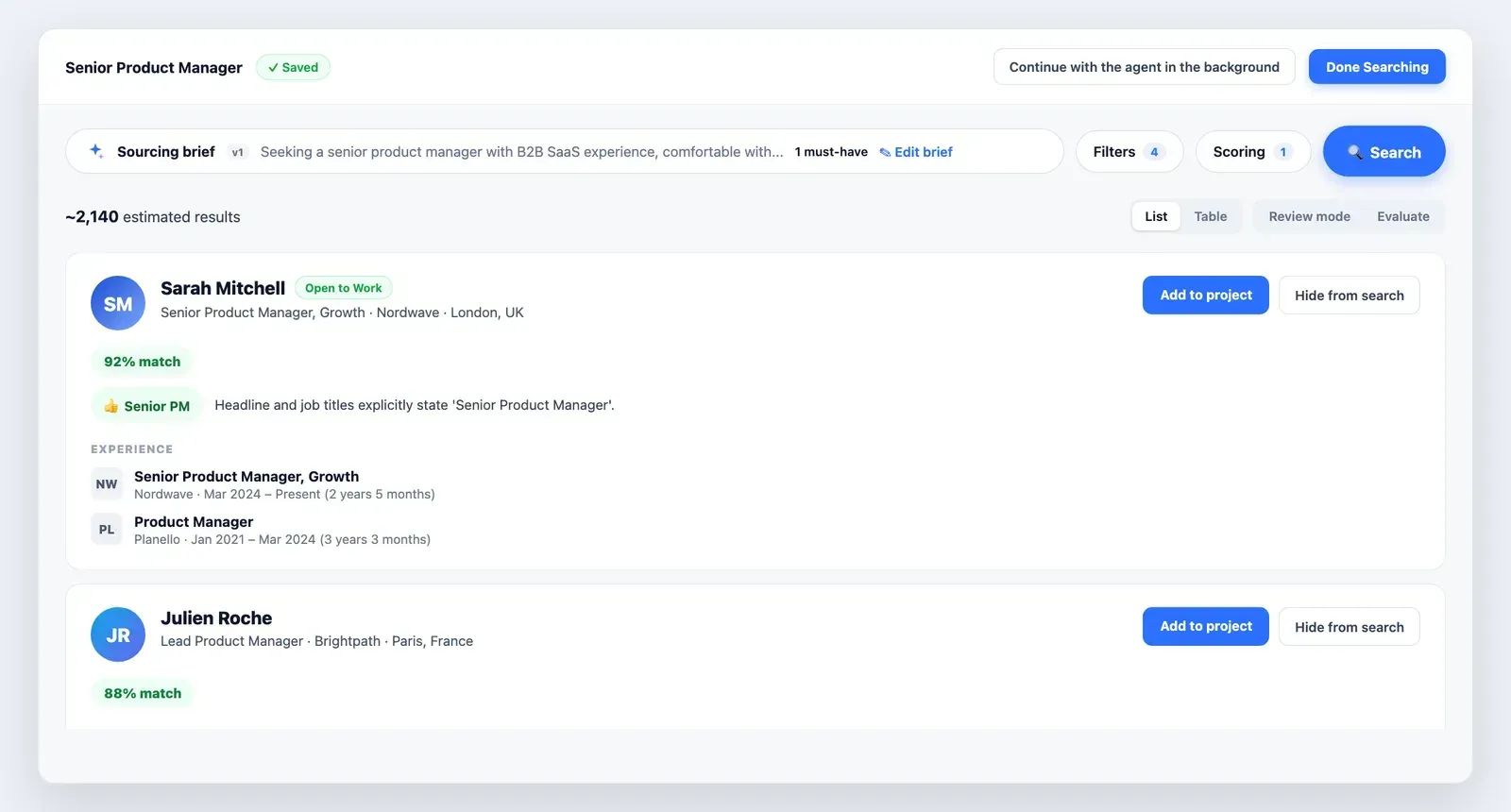
The bigger difference shows up in the review. A recruiting workspace can score and prioritize records that your team has selected, with a match percentage and a written reason for each candidate. You can then organize the shortlist, prepare notes and drafts, and keep the next human follow-up visible in one workspace. Email, WhatsApp, and SMS automation can remain separate where the relevant provider allows it.
Some third-party tools advertise agents that run searches in the background. That approach may conflict with LinkedIn rules and is not the execution path described here. If you use an assistant, have it prepare a brief or draft, then complete and review the LinkedIn steps yourself. Our guide to how to source LinkedIn Recruiter with Claude discusses the trade-offs.
Complete filter reference
Here is every filter available in LinkedIn Recruiter, organized by category. Filters marked with (Corporate only) are not available on Recruiter Lite.
Identity and profile filters
### Job and role filters ### Company filters ### Education filters ### Skills and languages ### Location filters ### Engagement and activity filters ### Recruiter workflow filtersPriority filters: use these every search
These filters deliver the highest signal-to-noise ratio. Use them as the foundation of every search.
Job titles
The single most important filter. It searches the title field of current and past positions.
Best practices:
- Switch between “Current” and “Current or past” depending on whether you want active holders or anyone who has held the role.
- Use the “Must have” operator for your primary title and “Can have” for related titles.
- Account for title variations. “Product Manager” will not match “PM” or “Product Lead.” Add variations manually or use Boolean in the Keywords filter.
- Combine with the Companies filter for surgical precision (e.g., “Software Engineer” at “Stripe”).
Locations
Critical for any role that is not fully remote.
Best practices:
- For large cities, use the metropolitan area option (e.g., “Greater London Area” instead of just “London”) to capture candidates in surrounding towns.
- Stack multiple locations with “Can have” to search across several cities at once.
- Check “Open to relocation” to include candidates willing to move, especially important in smaller talent markets.
Companies
Target candidates with experience at specific companies: competitors, industry leaders, or companies known for strong talent in your domain.
Best practices:
- Use “Current companies” to target active employees (for poaching) or “Past companies” for alumni.
- Combine with the Title filter: “Software Engineer” + “Current company: Google” surfaces exactly the profiles you want.
- Build a target company list before searching. Map your competitors and companies with similar tech stacks, culture, or scale.
Keywords
The most flexible filter. It searches the entire profile: headline, summary, experience descriptions, skills, and education.
Best practices:
- Use Boolean operators for precision:
"machine learning" AND Python NOT junior. - Be aware of stop words. LinkedIn ignores common words like “and,” “or,” “the,” “for,” “with,” and “in” when they appear in keyword searches.
- Use keywords to compensate for incomplete Skills sections. Many candidates describe their skills in experience descriptions but never add them to the Skills section.
How the years-of-experience filter counts experience
LinkedIn derives this value from the start date of the earliest position in a candidate’s Experience section. It measures elapsed career span rather than adding the length of each role.
An internship can move that start date earlier. Career gaps can make the span longer than time spent working, while overlapping roles are not added together. There is no reliable fixed offset. Use a broad range, then check each candidate’s timeline against the experience the role needs.
On Corporate, combine years of experience with “Years in current position” to find candidates who may be ready for a move, typically 2+ years in the same role.
Spotlights
Spotlights surface candidates based on engagement signals rather than profile data. This makes them uniquely valuable for finding responsive candidates.
**Best practices:**- “Open to work” is the highest-conversion spotlight, since these candidates are actively looking and respond quickly.
- “Past applicants” is underused. Silver medalists from previous processes are pre-vetted and already interested in your company.
- Stack spotlights with other filters: “Open to work” + your Title and Location filters surfaces the most immediately actionable candidates.
Situational filters: use when relevant
These filters are valuable in specific hiring contexts but not needed for every search.
Schools
Useful when educational background matters: consulting, finance, law, or roles requiring specific certifications.
Limitations: Does not differentiate between degree programs at the same school. A candidate with an MBA from Stanford and one with a certificate from Stanford Online look the same.
Languages
Important for roles requiring specific language skills: international teams, customer-facing positions in multilingual markets, or translation roles.
Limitations: Many candidates do not fill out the spoken languages section. If language is critical, supplement with Keywords (e.g., search for “fluent in German” or “allemand” in the profile text).
Industries
Helps when you need domain-specific experience: healthcare, fintech, manufacturing, and similar sectors.
Limitations: The industry is pulled from the company’s LinkedIn page, not the candidate’s self-identification. A software engineer at a hospital is classified as “Healthcare” even if they have no medical expertise. Use cautiously and combine with Keywords for accuracy.
Seniority (Corporate only)
LinkedIn’s algorithm infers seniority from title, company size, and other signals. Levels include Entry, Senior, Manager, Director, VP, CXO, and Owner/Partner.
Limitations: Inferred seniority can be wrong. A “Director of Engineering” at a 5-person startup is very different from one at Google. Always validate with Years of Experience and company context.
Years in current position / current company (Corporate only)
Two filters that help identify candidates who may be ready for a move. Research shows that professionals who have been in the same role for 2-3+ years are more receptive to outreach.
Pro tip: Combine “Years in current position: 2+” with “Open to work” for the highest-response-rate candidate pool.
Filters to use carefully
Some filters seem useful but can actually hurt your search results.
Year of graduation
Unreliable because it does not distinguish between initial degrees, bootcamps, certifications, and continuing education. A candidate who graduated in 2012 and then completed a data science bootcamp in 2023 will show both graduation years, making this filter unpredictable.
Use instead: Years of Experience for a more reliable seniority proxy.
Skills and assessments
Most candidates do not fully populate their Skills section. LinkedIn reports that the average profile has fewer than 10 skills listed, while many roles require screening for 20+ potential skills.
Use instead: The Keywords filter, which searches the entire profile text. A candidate who writes “Built a recommendation engine using TensorFlow and Python” in their experience but never added “TensorFlow” to their Skills section will be found by Keywords but missed by Skills.
Pro tips for better searches
Start broad, narrow progressively
Begin with 2-3 core filters (Title + Location + Years of Experience). Review the first page of results. If too broad, add filters one at a time. This prevents over-filtering, a common mistake that eliminates good candidates.
Use the search result count as a guide
LinkedIn shows the total number of matching profiles at the top. If your search returns fewer than 50 results, you are probably too restrictive. Remove a filter or switch operators from “Must have” to “Can have.”
Leverage “Hide previously viewed”
After reviewing a batch of candidates, enable “Hide previously viewed” to see fresh profiles. The filter resets after approximately 8-9 hours, so you can come back the next day for a clean view.
Save searches and set alerts
Save your best-performing filter combinations as saved searches. Enable alerts to receive notifications when new candidates match your criteria. This turns a one-time search into a passive sourcing reminder. Leonar can help organize the candidates you choose to track, with notes, drafts, and review tasks, after you inspect the results.
Know the result limit
LinkedIn Recruiter displays a maximum of 1,000 candidates (40 pages of 25) per search, even if more profiles match. If your search exceeds 1,000 results, add filters to create more targeted sub-searches rather than trying to bypass the limit. Use an export only when LinkedIn explicitly provides it for your account and contract, and review any third-party workflow separately.
Combine filters with Boolean in Keywords
Filters and Boolean searches work together. Use filters for structured data (location, company, experience) and Keywords with Boolean for unstructured data (specific tools, methodologies, certifications). For a full guide to Boolean syntax and templates, see our LinkedIn Boolean search guide. The same Boolean logic also works outside Recruiter: you can run a Google X-ray search for LinkedIn profiles to reach candidates a seat may cap or hide.
Our free Google X-ray search generator turns a title, location, and a few keywords into that query in seconds.
Check for copy-paste errors
If your search returns unexpectedly low results, you may have copy-pasted text with hidden formatting characters. LinkedIn’s search engine can misread these. Delete the text and retype it manually.
Common search mistakes
Using too many “Must have” filters. Each “Must have” filter is an AND condition. Five “Must have” filters means a candidate must match all five, and your results shrink exponentially. Reserve “Must have” for non-negotiable requirements (usually just Title and Location).
Ignoring title variations. “Software Engineer,” “Software Developer,” “SWE,” and “Backend Engineer” are all different strings. A Title filter for “Software Engineer” will miss the others. Use Boolean OR in Keywords or add multiple values to the Title filter.
Setting experience ranges too narrow. A filter set to “exactly 5 years” will miss a candidate with 4 years and 11 months. Always use a range with a buffer (e.g., 4-7 years for a “5 years experience” requirement).
Relying on Skills instead of Keywords. As discussed above, the Skills section is chronically underused by candidates. Keywords searches the full profile and catches skills mentioned in job descriptions, summaries, and project details.
Not using Spotlights. Many recruiters skip Spotlights entirely and miss the easiest wins. “Open to work” candidates typically respond faster and at higher rates than passive candidates, since they are actively looking. “Past applicants” are already vetted. These are free engagement signals, so use them.
Forgetting to check “Open to relocation.” For roles in smaller markets, this checkbox can double your candidate pool by including people willing to move. It is off by default.
Recruiter Lite vs Corporate: filter comparison
Here are the key filters available only on Recruiter Corporate:
If you are on Recruiter Lite and frequently need Seniority or tenure-based filters, it may be worth upgrading. For a detailed cost-benefit analysis, see [Recruiter Lite vs Corporate](/blog/linkedin-recruiter-corporate-recruiter-lite/). Alternatively, compare with [Sales Navigator](/blog/linkedin-sales-navigator-vs-recruiter-lite/) if your sourcing needs lean more toward lead generation.Which filters should anchor your recruiter search on LinkedIn?
LinkedIn Recruiter’s filters are powerful but only if you know which to prioritize and how to combine them effectively. Start every search with Title, Location, and Years of Experience. Layer in Spotlights for engagement signals. Use Keywords with Boolean for skills and certifications. And save “Must have” for your absolute non-negotiables.
If you would rather describe the role once, Leonar can turn it into a filter draft, help organize selected profiles, and keep personalized drafts and reminders ready for your review. The LinkedIn search and any LinkedIn contact action remain user-led steps.
For the next step in your workflow, learn how to write messages that get replies with our InMail cost and strategy guide or organize your outreach with LinkedIn Recruiter workflow tools. If you want to complement LinkedIn sourcing with other channels, see our candidate sourcing software comparison.
Save time on every follow-up
Keep multichannel outreach in one sequence, see who to contact next, and move through follow-ups faster.
Frequently asked questions
Does LinkedIn Recruiter have AI search in 2026?
Yes. LinkedIn has rolled out AI-assisted search inside Recruiter, where you describe the role you want to fill in plain language and LinkedIn suggests matching filter values. It speeds up the first pass, but it still maps onto the same filters covered here, so recruiters get the best results by refining the AI's draft with the operators, Spotlights, and ranges they choose manually.
Can AI build LinkedIn Recruiter search filters for me?
Yes. LinkedIn's built-in assistant can draft filter values from a plain-language prompt. A recruiting workspace can help turn a sourcing brief into a Boolean and filter draft, then organize and prioritize the profiles your team has selected. The final LinkedIn search and review stay with the user.
How many search filters does LinkedIn Recruiter have?
Recruiter Lite includes 20+ filters. Recruiter Corporate includes 40+ filters. The exact number varies as LinkedIn adds and reorganizes filters, but Corporate consistently provides roughly double the filter options of Lite.
What is the difference between "Can have" and "Must have" in LinkedIn Recruiter?
For filter types that offer these Boolean operators, "Must have" requires the candidate's profile to match that value. "Can have" treats it as a preference, so candidates without it are not excluded. "Doesn't have" excludes profiles that match it. Range filters and Spotlights use their own controls instead.
Why does LinkedIn Recruiter show so few results for my search?
Common causes: too many "Must have" filters active simultaneously, copy-pasted text with hidden formatting characters, or overly narrow ranges (e.g., "exactly 3 years" instead of "2-5 years"). Remove filters one at a time to identify which one is too restrictive.
What is the maximum number of search results in LinkedIn Recruiter?
LinkedIn Recruiter displays up to 1,000 candidates (40 pages of 25) per search. If your search matches more than 1,000 profiles, you will only see the first 1,000. Narrow your search with additional filters to ensure the most relevant candidates appear in your results.
Does LinkedIn Recruiter Lite search the full LinkedIn network?
No. Recruiter Lite searches 1st, 2nd, and 3rd-degree connections only. Recruiter Corporate searches the entire LinkedIn network with no degree restrictions. This is one of the biggest practical differences between the two plans.
What are Spotlights in LinkedIn Recruiter?
Spotlights are engagement-based filters that surface candidates showing specific signals: "Open to work," "Active talent," "More likely to respond," "Past applicants," "Company followers," and "Internal candidates." They help you prioritize responsive candidates over passive ones.
How does the "Years of experience" filter calculate experience?
LinkedIn derives the value from the start date of the earliest position in a candidate's Experience section. It reflects elapsed career span, not a sum of roles. Internships, career gaps, and overlapping roles can make that span differ from time spent working, so use a broad range and review each profile's timeline.
Can I search on LinkedIn Recruiter from mobile?
Yes. The LinkedIn Recruiter mobile app supports basic search and filter functionality on both iOS and Android. However, some advanced filters, saved search management, and search alerts are only available on desktop. You can start a search on mobile and refine it on desktop later.
Answer 3 quick questions and we will recommend the best option for your hiring workflow.
How large is your recruiting team?

Author
André FarahCo-founder
André Farah is co-founder of Leonar, where he leads product strategy for the recruiting platform. With over 8 years of experience in HR technology and recruitment process optimization, he specializes in designing sourcing workflows, outbound sequences, and candidate engagement systems. André works closely with staffing agencies and in-house talent teams to build repeatable hiring processes that scale. He regularly shares insights on Boolean search techniques, multi-channel outreach, and the operational side of modern recruiting.
Related articles
-
 LinkedIn Recruiter
How to export candidates from LinkedIn Recruiter (official options)
-
 LinkedIn Recruiter
How to Use LinkedIn Recruiter: 2026 Guide
-
 LinkedIn Recruiter
LinkedIn Boolean Search for Recruiters (2026)


